Tuesday, 2 February 2016

Welkinsuite Tool for Force.com Development

Similar to the development for any other platform, Salesforce development largely depends on the tool you are using. That is why, when a IDE does not match your requirements by lacking some functionality or offering utterly inconvenient ways to handle tasks, it is time to search for something different. Due to the popularity of Salesforce, and the enthusiasm of its contributors, there are several alternative options when it comes to finding a comfortable IDE.


However, in spite of the variety of such programs, many of the existing IDEs provide nothing more than basic functionality, which does not cover complex tasks within Salesforce. While in some cases this functionality can be enhanced by installing a few extensions and adding some extra applications, switching between them is not always comfortable. At the same time, many IDEs offer limited features, and even though they may be polished, you still have to use other IDEs to get the unsupported yet necessary functionality.


Here’s where The Welkin Suite tool comes in handy. Although this IDE was released not long ago, it already has a bunch of features that make your life as a developer a whole lot easier. Some of its functionality is not supported by other IDEs, such as Debug Logs Highlighting, Customizable Folder Structure, ApexDoc, Code Snippets, etc.


Here’s a brief overview of the key features that make The Welkin Suite stand out:


  1. Customizable Folder Structure


When working with your Salesforce project, you are mostly bound to use the default “Classes-Triggers-Components-Pages” structure, and you are not allowed to move any files between the folders. In TWS this limitation is removed, so you can organize your source code in the most convenient and logical way. You can simply drag the necessary file to any folder regardless of its type and nesting level. This way, pages can be grouped with controllers, utility classes and components, and you will always know exactly what each file does and to which file it relates. Besides, you will not waste your time switching between closely related components, since they will all be in one place. Also, having made all these changes, you can sync them with the Salesforce org to make them accessible from other PCs.
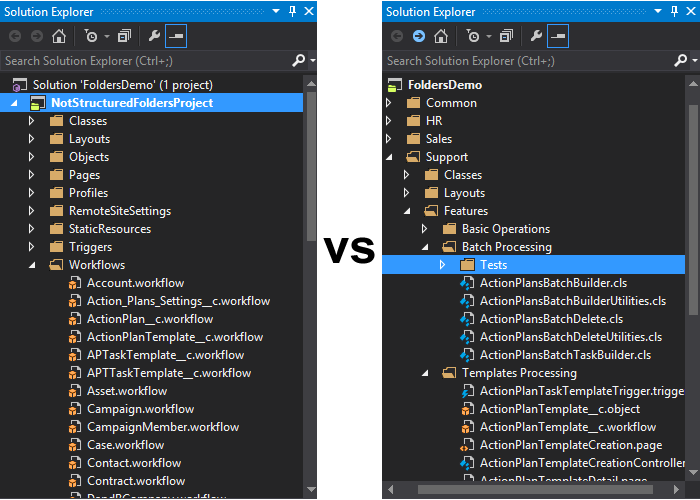


Although seemingly small in terms of the overall potential of The Welkin Suite, in reality the possibility to customize project structure introduces a series of benefits for the users. First off, this feature allows you to separate unrelated project parts, which reduces the time needed to find application-specific components and makes the position of the file within the project visible and recognizable. This significantly improves code navigation and makes working with large projects more convenient.
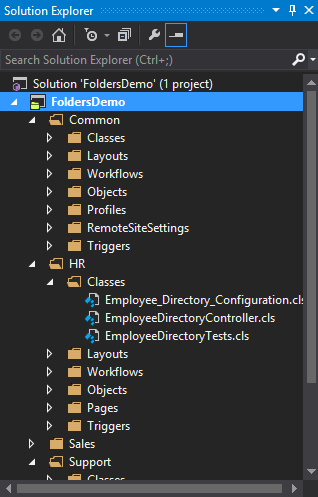

Also, since you are free to move feature-related components to one place, the project structure as such becomes self-descriptive, meaning that you no longer need additional documentation. This is where Single Responsibility Principle in development comes to life.
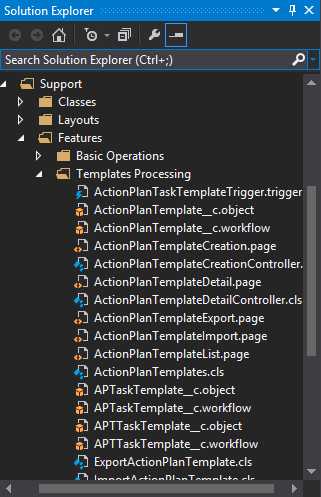


Finally, you can group all your tests to a separate project branch, which will immediately increase the visibility of the actual ‘useful’ code in your project structure, and allow you to get rid the ‘Test’ prefix if necessary.

2) Advanced Editor


When it comes to development, time really matters, and The Welkin Suite did a good job introducing plenty of time-saving features, such as an advanced code editor, which really speeds up the development by a series of shortcuts. In fact, this IDE has several built-in editors for Apex, Visualforce, HTML, CSS and Javascript, each packed with the functionality to take the weight of small tasks off your shoulders.


This includes code completion, which not only allows you to save time when coding by providing a list of suggestions, but also helps you make fewer mistakes.
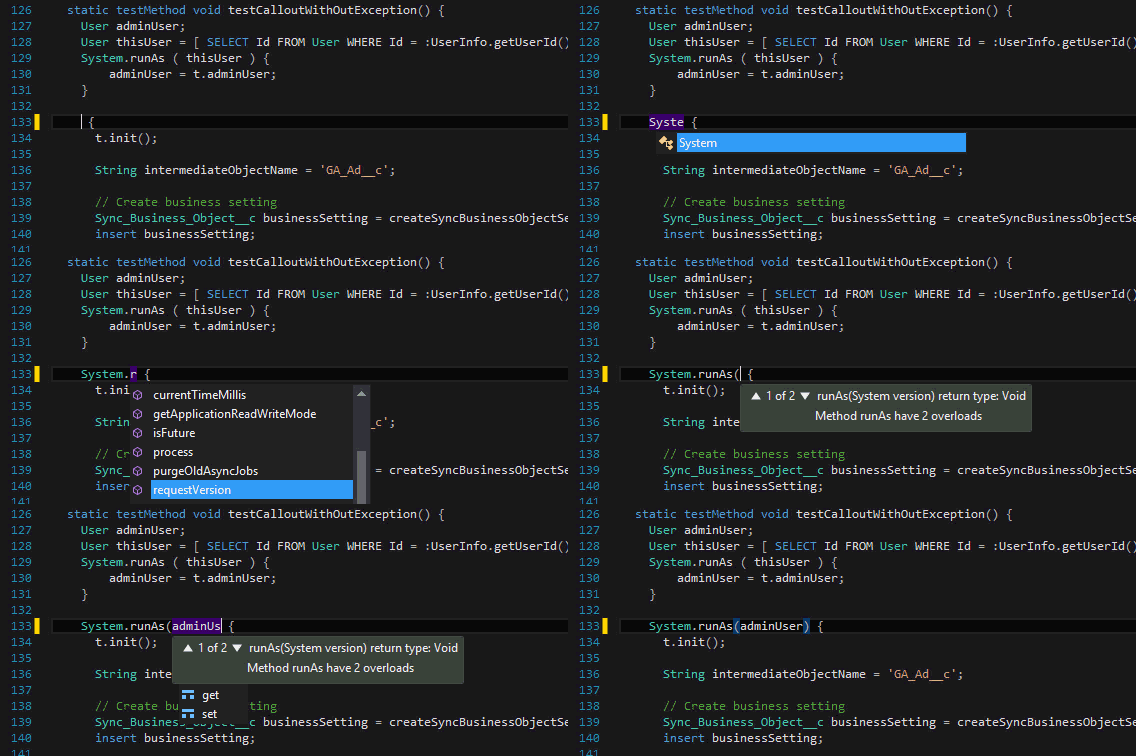


Likewise, all of the editors support customizable syntax highlighting, which will highlight parts of your code in different colors depending on the lexical type.
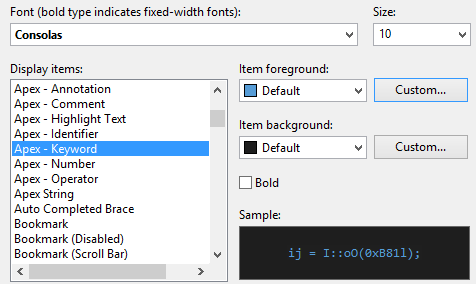


Apart from that, this IDE’s Apex Editor also has a parser, which improves your coding velocity a whole lot.


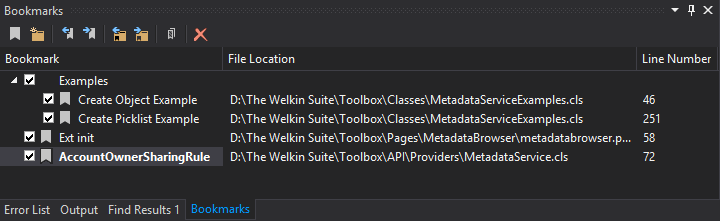
Finally, The Welkin Suite team put a lot of effort into ensuring convenient navigation. For instance, you can bookmark some parts of your code, which allows you to navigate there in a few clicks instead of having to scroll to the necessary spot.

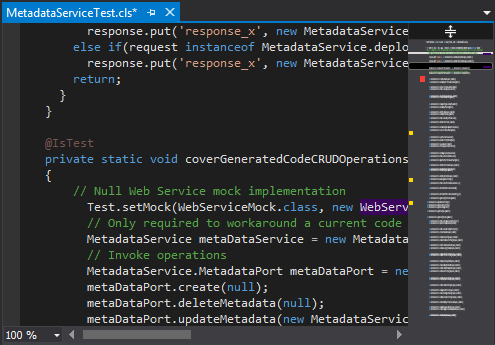
What is also cool is that this IDE has a very convenient code-map scrollbar, which gives you a preview of your code when you move your mouse over the scrollbar. This works best if you have large code base and you don’t want to waste your time searching for the place where you left off. Apart from that, errors, search results, and highlighted text are shown in the scrollbar as well, which makes this tool even more user-friendly.


3) Lightning components and applications support


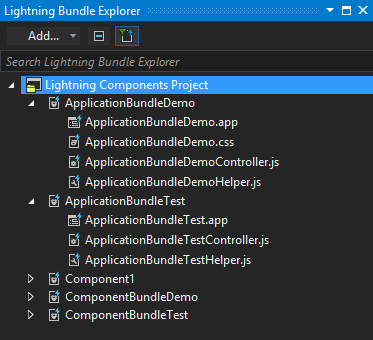
Lately, Salesforce has been all about Lightning as a new and progressive application technology, so naturally, when developing in Salesforce you would look for a tool that supports the latest trends. What is cool about The Welkin Suite is that it allows you to develop Lightning applications and components directly in the IDE, using the Lightning Bundle Explorer, and then preview the results in the handy Lightning Previewer.


4) Convenient Pull and Merge functionality


Since Salesforce is a cloud-based environment, there are cases where several developers are working on the same project at the same time. This means that the changes they make to the code may conflict with each other. The Welkin Suite provides a convenient way to solve such conflicts.


First, this IDE allows you to pull changes from your Salesforce org to see if anything has been changed and update your project in accordance with these changes.
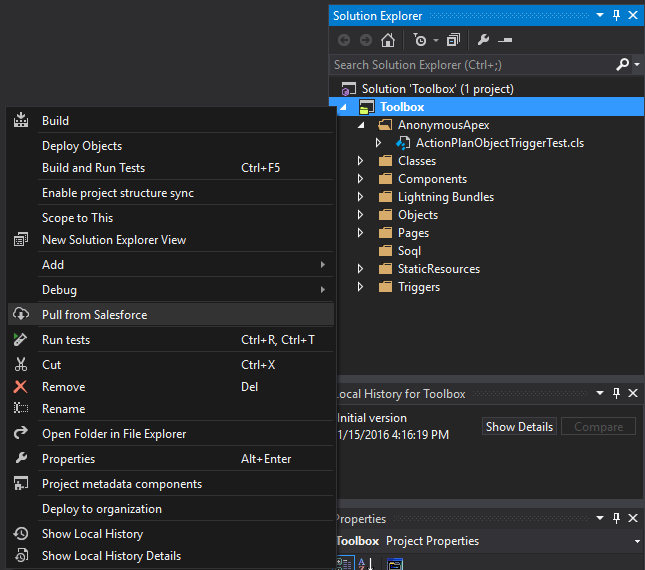


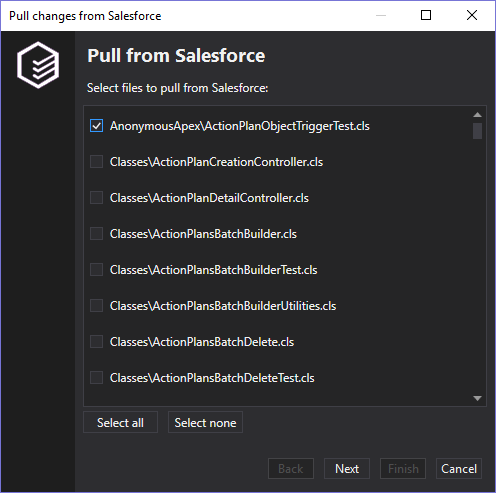
While you can pull the whole project, this IDE also allows you to pull separate files. This shortens the pull process significantly and saves your time. You can simply check the files you need in a separate window and it will take a few seconds to have them updated.


In case a conflict was detected in some file, you will be offered to override the changes you made to this file locally:
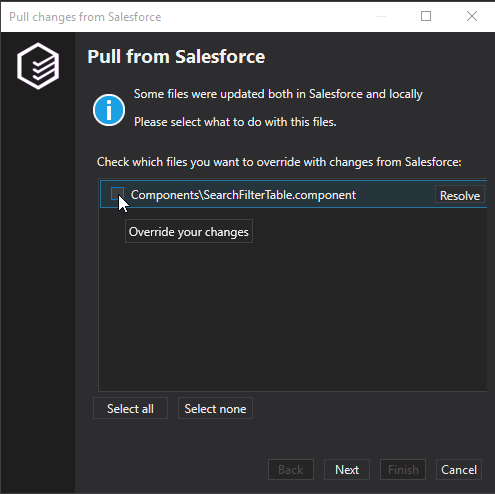

Alternately, you will be offered to merge your local changes with those made on the server. Although to do that you need to install an external tool, when installing The Welkin Suite you will be offered to install the KDiff3 merge tool or you can use some other merge tool that is supported by the IDE.


5) Quick and effective Unit Testing and Code Coverage


Since Salesforce states that no less than 75% of the code should be covered by tests, the efficiency and ergonomics of the Test Runner functionality is crucial for the development process. Here’s where The Welkin Suite made things simple by offering a Test Runner process that works in the background in a separate panel, so that it will not interfere with your workflow. Plus, this panel provides all the necessary information on the tests, both in progress and finished, along with their statuses. In case any error message is given, it will be displayed on this panel as well, along with the log info - the results of the test run, stack trace and message. The Welkin Suite also allows you to open the log directly from this panel.


What is also cool is that you can choose to rerun failed tests directly from this panel, which is handy because you immediately see exactly which tests have failed and then you can open the corresponding file from this very panel without searching for it throughout your project.
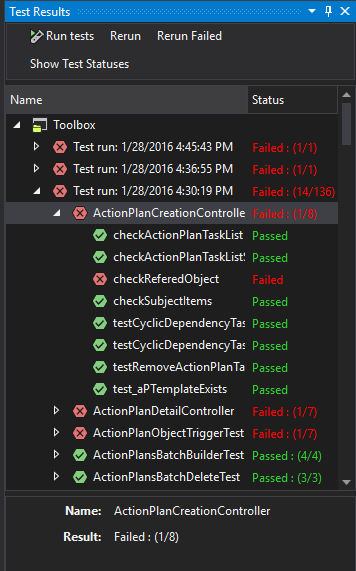

You can also choose an option to build and run tests, which saves tons of time when you are working with tests a lot.


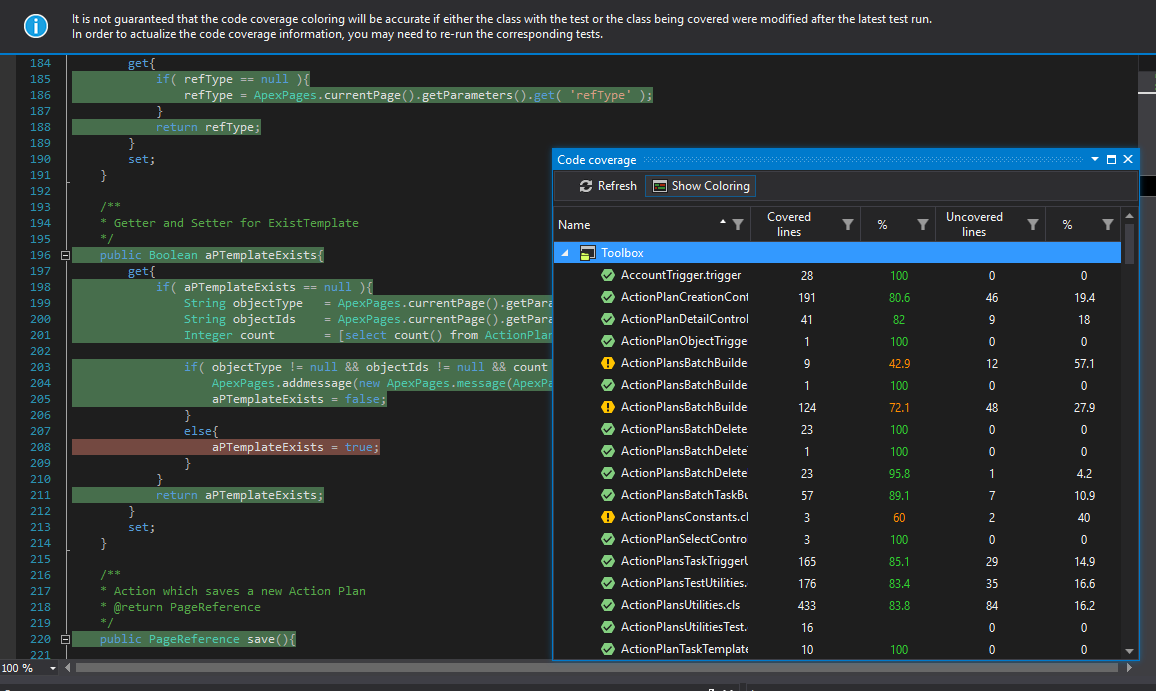
To see which portion of your code is covered by tests, you can use the Code Coverage option, which shows the list of files in your project in a separate window, and provides the percentage along with the number of covered and uncovered lines.  

6) Local Changes History


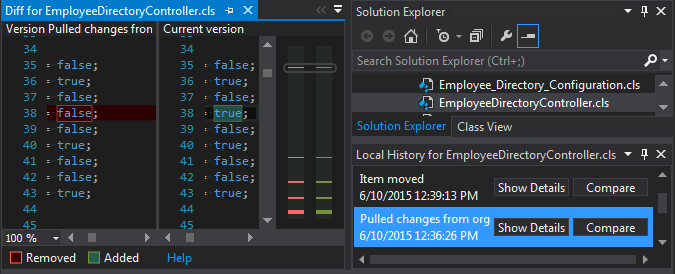
Working without keeping track of your progress is almost impossible, so when coding, you should always have some backup. Most commonly, in Salesforce development you have to manually copy the files and store them somewhere else, but The Welkin Suite’s version control system provides a more convenient way.  At times when something is going wrong, you have a quick way to track the changes, compare the versions of the same file, or even restore to any previous version.


With this process fully automated and a very user-friendly interface, this feature really improves the development process by reducing the number of actions you need to make.


All in all, these features really bring The Welkin Suite IDE to the top. While there is a lot done already, the team has not stop and has other features planned, namely, the Mac version.


Give this IDE a try and share your feedback with the creators - your feedback will not go unnoticed!


You can download this IDE here - https://welkinsuite.com/


The Welkin Suite can be contacted via email - info@welkinsuite.com or through social networks:
https://www.linkedin.com/company/the-welkin-suite

Wednesday, 28 October 2015

Playing with Record Types - APEX

HI Friends ,

In this I am going to demonstrating the sample mechanism to get record types for the particular object in to apex.

1. Using describe object , we can get Record Types Names and Record Type Ids .Below is the example,

String StrRecordTypeId =  Schema.SObjectType.Account.getRecordTypeInfosByName().get('Business').getRecordTypeId();

The above code returns the record type id of the Business record type.

2. Another way to get Record type is query on the Record Type object .

           Select Id From RecordType where sobjecttype = 'Opportunity'

The above query gives us all record types defined on the opportunity object.


Hope above 2 are use full.

Thank you.

Tuesday, 13 October 2015

Salesforce Winter 16 Release Notes

Winter ’16 is here! After a nice Dreamforce shaped break we can all get stuck into a whole host of new features Salesforce has kindly laid out for us. Winter ’16 is clearly one of the biggest releases that most of us can remember with the announcement of the Lightning Experience. Putting LE to one side for a minute though, this release is full of a whole host of other features that are going to make our lives as users/admins/consultants that little bit easier. Let’s dive into a short breakdown of some of the more notable features.
  • No longer accessible from Setup or the Accounts, Contacts, Leads, Campaign Detail, and My Settings pages.
  • Legacy Import “My Accounts and Contacts” is being retired
  • Why? The Data Import Wizard is more capable.
  • Consists of three things:
    • Lightning Experience Desktop App: 25 new features, modern UI, faster
    • Lightning App Builder: Drag & drop to make customizations quick and easy
    • Lightning Design System: Style guide, design patterns, and component library.
  • Sales analytics are better and easier to configure.
  • Create tasks, update a record, and share insights
  • Ability to route incoming work items (Cases, chats, calls, leads, etc..) to specific users.
  • Helps to eliminate queue cherry picking or the wrong people working your service calls/cases.
  • Also helps load balance the incoming work
  • New Sales & Service Events added
  • Will listen for when specified records are created or updated to trigger customers into a specific journey, which is enhanced by personalized communications.
  • Communities is now known as Community Cloud.
  • Lighting components now available in Community Builder
  • Create and customize custom objects in a new streamlined setup
  • Create pages by dragging and dropping components
  • Related: The new Object Manager can be used to manage both standard and custom objects in one place.
  • Rollup Summary Field limit increased from 10 to 25
  • Multi-Select picklists can now have 500 values! (Don’t tell your users)
  • “Restricted Picklists” This feature can prevent users from making up their own picklist values when loading data.
  • Previewing files is fast and looks great.
  • New: “Broadcast Groups” – type of group where only owners and managers can create new posts
  • Ability to mute posts
  • Write Chatter posts in rich text
  • Connect for Outlook is now retired
  • Duplicate rules now run as users complete fields on a record, not just when they hit “Save.”
  • Enabled Lookup Relationship field for activities, but there is still a list of
  • New: “Salesforce Console for Service” – should reduce time and clicks on service calls
  • Enhanced search engine matching rules should make it easier when using punctuation in the search.
  • Bulkified!   The previous limit of 100 SOQL queries has been raised to 20,000
  • Schedule multiple actions!
  • Bulkified! The previous limit of 100 SOQL queries has been raised to 20,000
  • Faster Org-Wide Default Sharing Recalculations
  • New: “Object-Specific Share Locks” – make multiple sharing rule changes without waiting for recalculation across all objects to complete.
  • Ability to Auto-Activate a refreshed sandbox

I hope you enjoyed the read. Please let me know if you have any other favourite features with Winter ’16 that I might have missed off.

Sunday, 11 October 2015

Winter 16 Release Notes for Developers

Hi Friends ,

Here are the Winter 16 Release Notes for Developers . There are many but listed 5 useful updates for development.

1. getContent() and getContentAsPdf() call in Asyncronous methods 


Now we can make calls to the getContent() and getContentAsPdf() methods of the PageReference class from within asynchronous Apex such as Batch Apex,
Schedulable and Queueable classes, and @future methods.

getContent() and getContentAsPdf() are now allowed after performing DML operations.

Calls to getContent() and getContentAsPdf() aren’t tracked against callout limits

Example :

    PageReference pdf = Page.ExistingPage;
    // add parent id to the parameters for standardcontroller
    pdf.getParameters().put('id',accountId);
    // the contents of the attachment from the pdf
    Blob body;
    try {
      // returns the output of the page as a PDF
      body = pdf.getContent();
    // need to pass unit test -- current bug
    } catch (VisualforceException e) {
      body = Blob.valueOf('Some Text');
    }


2. lock() and unlock() methods in Apex Approval Process:

Previously, we can set approval-process locks and unlocks only through the Salesforce user interface. Now salesforce enabled Lock () & UnLock() methods in Apex.

To enable this feature, from Setup, enter Process Automation Settings in the Quick Find box, then click Process Automation Settings.
Then, select Enable record locking and unlocking in Apex.

Salesforce admins can edit locked records. Depending on your approval process configuration settings, an assigned approver can also edit locked records.
Record locks and unlocks are treated as DML. They’re blocked before a callout, they count toward your DML limits, and if a failure occurs, they’re rolled back along with the rest of your transaction. To change this rollback behavior, use an allOrNone parameter.

Approval.LockResult and Approval.UnlockResult classes let you interact with the results of your programmatic record locks and unlocks.

// Query the accounts to lock
Account[] accts = [SELECT Id from Account WHERE Name LIKE 'Acme%'];
// Lock the accounts
Approval.LockResult[] lrList = Approval.lock(accts, false);

3 .Email Notifications for Unhandled Apex Exceptions

Configure email addresses that receive emails when your Apex code encounters unhandled exceptions.

Go to --> Setup, enter Apex Exception Email in the Quick Find box, then select Apex Exception Email.

You can also configure Apex exception emails using the Tooling API object ApexEmailNotification.

4. Reorder Your Batch Jobs Programmatically

System.FlexQueue class enable you to automate the prioritization of batch jobs in the Apex flex queue. Previously, you could reorder jobs in the flex queue only from the Salesforce user interface.
You can place up to 100 batch jobs in a holding status for future execution. When system resources become available, the jobs are taken from the top of the Apex flex queue and moved to the batch job queue. Up to five queued or active jobs can be processed simultaneously for each org. When a job is moved out of the flex queue for processing, its status changes from Holding to Queued. Queued jobs are executed when the system is ready to process new jobs.

EXAMPLE :

ID jobToMoveId = System.enqueueJob(new MyQueueableClass());
AsyncApexJob a = [SELECT Id FROM AsyncApexJob WHERE ApexClassId IN
                   (SELECT Id from ApexClass WHERE NamespacePrefix = null
                    AND Name = 'BatchJob')]);
ID jobInQueueId = a.ID;
Boolean isSuccess = FlexQueue.moveBeforeJob(jobToMoveId, jobInQueueId);

5.Unlimited Concurrent Callouts to Internal Salesforce URLs

Now we can make unlimited concurrent callouts to endpoints in your Salesforce org’s domain.
You no longer need to live in fear of hitting limits when you set up cross-org integrations to synchronize data between your orgs.

Previously, you could make only 20 simultaneous requests to URLs within one host, including to URLs within your org’s domain.
That limit has been lifted for internal URLs. However, you can still make only 100 total callouts in a transaction
including to internal URLs.


Thanks.

Tuesday, 1 September 2015

Understanding Apex Triggers


Trigger Events :

 Events are the database activities which fires a trigger, this again is required for a trigger. So by this we can say Trigger is Apex Code that gets executed before and after of these operations.

  • Insert : Before and After
  • Update : Before and After
  • Delete : Before and After
  • Merge : Not directly, but both insert and delete trigger get fired for winning and losing records.
  • Upsert : Not directly, but both insert and update trigger gets fired
  • Undelete : After

Trigger Events :  Before Insert , After Insert , Before Update , After Update

Trigger Context Variables :

Trigger.New
Trigger.Old
Trigger.NewMap
Trigger.OldMap
Trigger.isinsert
Trigger.Isupdate
Trigger.isDelete
Trigger.isbefore
Trigger.isafter

Variable
Description

 isInsert

Returns true if this trigger was fired due to an insert operation, from the Salesforce user
interface, Apex, or the API.

 isUpdate 


Returns true if this trigger was fired due to an update operation, from the Salesforce user
interface, Apex, or the API.

 isBefore

Returns true if this trigger was fired before any record was saved.

 isAfter 


Returns true if this trigger was fired after all records were saved.

 isUndelete

Returns true if this trigger was fired after a record is recovered from the Recycle Bin (that is,
after an undelete operation from the Salesforce user interface, Apex, or the API.)


Structure trigger like this :

Writing single trigger on a object is preferable always . Please make sure your using the trigger events conditions and manage your code well .

trigger Test_Trigger on Account ( after update , after insert , before insert ,
before update , after delete , before delete )
    {
   
        if (Trigger.isBefore)
            {
           
                if (Trigger.isInsert)
                    {
                        // Logic to be executed for Before Insert
                    }
               
                if (Trigger.isupdate)
                    {
                        // Logic to be executed for Before Update
                    }
             
                 if (Trigger.isDelete)
                    {
                        // Logic to be executed for Before Delete
                    }
            }
       
        if (Trigger.isAfter)
            {
       
                if (Trigger.isInsert)
                    {
                        // Logic to be executed for After Insert
                    }
               
                if (Trigger.isupdate)
                    {
                        // Logic to be executed for After Update
                    }
           
                 if (Trigger.isDelete)
                    {
                        // Logic to be executed for After Delete
                    }
            }
        }

Thank you

Wednesday, 26 August 2015

Friday, 21 August 2015

MultiselectPicklist using Javascript - Visualforce page

Hi Salesforce Dev ,

Now I am going to demonstrate on the handling Multi select Pick list from Javascript on Visual force page.

Here is the code for the Multi select pick list ,

<table>
            <tr>
                <th ><h1 style="margin-left: 150px;">Account Fields</h1> </th>
                <th><h1 style="margin-left: 142px;">Contact Fields</h1> </th>
            </tr>
                <tr>
                    <td>
                            <apex:panelgrid columns="5" id="accpanel" style="margin-top: 10px;margin-left: 20px;"> 
                            <apex:selectList value="{!AccFields}" multiselect="true" size="5" id="accleft" style="width: 142px;height: 89px;">  
                                <apex:selectOptions value="{!AccountFields}"/>
                            </apex:selectList>
                            <apex:panelGroup >
                                <br/>
                                <apex:Commandbutton value=" > " onclick="MoveToRight('{!JSINHTMLENCODE($Component.accleft)}','{!JSINHTMLENCODE($Component.accright)}','Account');return false;" rerender="frm"/>
                                <br/><br/>
                                <apex:Commandbutton value=" < " onclick="MoveToLeft('{!JSINHTMLENCODE($Component.accleft)}','{!JSINHTMLENCODE($Component.accright)}','Account');return false;" rerender="frm"/>
                                <br/><br/>
                            </apex:panelGroup>
                            <apex:selectList id="accright" multiselect="true" size="5" value="{!AccountRightselected}" style="width: 142px;height: 89px;">   
                                <apex:selectOptions value="{!RightAccountFields}"/>
                            </apex:selectlist>
                        </apex:panelgrid>   
                    </td> 
                    <td>
                        <apex:panelgrid columns="5" id="conpanel" style="margin-top: 10px;margin-left: 20px;"> 
                            <apex:selectList value="{!Confields}" multiselect="true" size="5" id="conleft" style="width: 142px;height: 89px;">  
                                <apex:selectOptions value="{!ContactFields}"/>
                            </apex:selectList>
                            <apex:panelGroup >
                                <br/>
                                <apex:Commandbutton value=" > " onclick="MoveToRight('{!JSINHTMLENCODE($Component.conleft)}','{!JSINHTMLENCODE($Component.conright)}','Contact');return false;" rerender="frm"/>
                                <br/><br/>
                                <apex:Commandbutton value=" < " onclick="MoveToLeft('{!JSINHTMLENCODE($Component.conleft)}','{!JSINHTMLENCODE($Component.conright)}','Contact');return false;" rerender="frm"/>
                                <br/><br/>
                            </apex:panelGroup>
                            <apex:selectList id="conright" multiselect="true" size="5" value="{!ContactRightselected}" style="width: 142px;height: 89px;">   
                                 <apex:selectOptions value="{!RightContactFields}"/>
                            </apex:selectlist>
                        </apex:panelgrid> 


                    </td>
                    
                    
                </tr>   
        </table>


Here is the JS code , which will used to move left / right from Multi Select Pick list.

function MoveToRight(leftpickval,rightpickval,type){
            var removeOptions = new Array();
            if(document.getElementById(leftpickval)!=null && document.getElementById(rightpickval)!=null){
                var leftOptions = document.getElementById(leftpickval); 
                var rightOptions =document.getElementById(rightpickval);
                var iCount=0;
                for(var i=0;i<leftOptions.options.length;i++){
                    if(leftOptions.options[i].selected){
                        if(rightOptions.options.length==1 && (rightOptions.options[rightOptions.length-1].value==null || rightOptions.options[rightOptions.length-1].value==''))
                            rightOptions.options[0] = new Option(leftOptions.options[i].text, leftOptions.options[i].value);
                        else
                            rightOptions.options[rightOptions.length] = new Option(leftOptions.options[i].text, leftOptions.options[i].value);
    
                        removeOptions[iCount] = leftOptions.options[i].value;
                        iCount++;
                    }
                }
                for(var i=0;i<removeOptions.length;i++){
                    for(var j=0;j<leftOptions.length;j++){
                        if(leftOptions.options[j].value == removeOptions[i]){
                            leftOptions.remove(j);
                            break;
                        }
                    }
                }
            }
            sortLeftSelect(leftpickval);
            sortRightSelect(rightpickval);
        }
        function MoveToLeft(leftpickval,rightpickval,type){
            var removeOptions = new Array();
            if(document.getElementById(leftpickval)!=null && document.getElementById(rightpickval)!=null){
                var leftOptions = document.getElementById(rightpickval);
                var rightOptions =document.getElementById(leftpickval);
                var iCount=0;
                for(var i=0;i<leftOptions.options.length;i++){
                    if(leftOptions.options[i].selected){
                        if(rightOptions.options.length==1 && (rightOptions.options[rightOptions.length-1].value==null || rightOptions.options[rightOptions.length-1].value==''))
                            rightOptions.options[0] = new Option(leftOptions.options[i].text, leftOptions.options[i].value);
                        else
                            rightOptions.options[rightOptions.length] = new Option(leftOptions.options[i].text, leftOptions.options[i].value);
    
                        removeOptions[iCount] = leftOptions.options[i].value;
                        iCount++;
                    }
                }
                for(var i=0;i<removeOptions.length;i++){
                    for(var j=0;j<leftOptions.length;j++){
                        if(leftOptions.options[j].value == removeOptions[i]){
                            leftOptions.remove(j);
                            break;
                        }
                    }
                }
            
            }
            sortLeftSelect(leftpickval);
            sortRightSelect(rightpickval);
            
        }
  function sortLeftSelect(typeval) {
    var tmpAry = new Array();
    selElem = document.getElementById(typeval);
    for (var i=0;i<selElem.options.length;i++) {
        tmpAry[i] = new Array();
        tmpAry[i][0] = selElem.options[i].text;
        tmpAry[i][1] = selElem.options[i].value;
    }
    tmpAry.sort();
    while (selElem.options.length > 0) {
        selElem.options[0] = null;
    }
    for (var i=0;i<tmpAry.length;i++) {
        var op = new Option(tmpAry[i][0], tmpAry[i][1]);
        selElem.options[i] = op;
    }
    return;
 }  
 function sortRightSelect(typeval) {
    selElem = document.getElementById(typeval);
    var tmpAry = new Array();
    for (var i=0;i<selElem.options.length;i++) {
        tmpAry[i] = new Array();
        tmpAry[i][0] = selElem.options[i].text;
        tmpAry[i][1] = selElem.options[i].value;
    }
    tmpAry.sort();
    while (selElem.options.length > 0) {
        selElem.options[0] = null;
    }
    for (var i=0;i<tmpAry.length;i++) {
        var op = new Option(tmpAry[i][0], tmpAry[i][1]);
        selElem.options[i] = op;
    }
    return;
 } 


Thank you.

Haribabu Amudalapalli

Wednesday, 19 August 2015

Salesforce Collections

HI Salesforce Developers ,


Developer Console

list<college> lststudent=new list<college>();
College shadan=new college();
shadan.strStudentName='susan';
Shadan.iStudentAge=20;
lststudent.add(shadan);

Retrieving values from list
for(college obj:lststudent)
{
system.debug(obj.strStudentName);
system.debug(obj.istudentage);
}

Sets
set<college> setCollege=new set<college>();
creating an object
college biet=new college();
Inserting elements into set
biet.strStudentName='Jasmine';
biet.istudentage=24;
adding object to the set instance
setcollege.add(biet);
Retrieving elements from set
for(college obj:setcollege)
{system.debug(obj.strStudentName);
system.debug(obj.istudentage);
}

Maps
map<string,string> mapname=new map<string,string>();
   mapname.put('anitha','Sfdc');
   mapname.get('anitha');


DML Operations
Inserting values into Accounts Object

list<account> a1=new list<account>();
a1.add(new account(name='Preethi'));
insert a1;

15/10/14

Lists

list<string> lststring=new list<string>();    // creating an empty list of string
lststring.add('philomenal');                        //adding element philomenal to the list
string str =lststring.get(0);                        //Retrieves the element at index 0
system.debug(lststring.get(0));                //printing the retrieved element


Inserting and retrieving multiple elements from List

list<integer> lstinteger=new list<integer>();
lstinteger.add(1000);
lstinteger.add(2000);

integer isalary =lstinteger.get(0);
isalary =lstinteger.get(1);
system.debug(lstinteger.get(0));
system.debug(lstinteger.get(1));

Sorting in Order

List<string> colors=new list<string>{'green','pink','red'};
   colors.sort();
system.assertEquals('green', colors.get(0));
system.assertequals('pink',colors.get(1));
system.debug(colors.get(0));
system.debug(colors.get(1));
add(integer,object) method

list<integer> lstinteger=new integer[3];
lstinteger.add(0,1000);
lstinteger.add(1,2000);
lstinteger.add(3,3000);
system.assertEquals(lstinteger.get(3), 3000);
system.debug(lstinteger.get(3));

Coping one List elements into another list using addall()

List<Account>lsta1= new list<Account>([select name,id from account where name='hitachi']);
List<Account>lsta2=new list<Account>([select name,id from account where billingcity='hyd']);
List<Account>lstMasterAcc= new List<Account>();
lstMasterAcc.addall(lsta1);
//System.debug(MasterAcc.get(lsta1));
lstMasterAcc.addall(lsta2);
//system.debug(MasterAcc.get(lsta2));
for(Account Accobj:lstMasterAcc)
{system.debug(lstMasterAcc.get(0));}

Coping  List elements into set using addall(set)

List<Account>lstacc=new list<Account>([select name,id from account where billingcity='hyd']);
set<account> setacc=new set<account>([select id,name from account where name='abcd']);
List<account> lstMasteracc=new List<account>();
lstmasteracc.addall(setacc);
lstmasteracc.addall(lstacc);
for(account objacc:lstmasteracc)
{
   system.debug(lstmasteracc.get(0));
}

Inserted account records into list elements
List<account> LstAcc=new list<account>([select name,id from account where billingcity='hyd']);
for(account obj:lstacc){
system.debug(lstacc.get(0));
}


Clearing the inserted elements from List
List<account> LstAcc=new list<account>([select name,id from account where billingcity='hyd']);
//for(account obj:lstacc){
lstacc.clear();
//}

Clone()
List<account> lstacc=new list<account>([select name,id from account where billingcity='hyd']);
List<Account> lstAccClone= lstacc.clone();
system.debug('cloned account is '+lstacc);

Equals(list)

List<account> lstacc=new list<account>([select name,id,createddate from account where billingcity='hyd']);
List<Account> lstAccClone= lstacc.clone();
system.debug('cloned account is '+lstacc);
lstacc.equals(lstAccClone);
system.debug('lstacc equals lstaccclone '+lstacc.equals(lstAccClone));

Debug:18:43:50:248 USER_DEBUG [6]|DEBUG|lstacc equals lstaccclone true

Equals(list) for deep clone
List<account> lstacc=new list<account>([select name,id,createddate from account where billingcity='hyd']);
List<Account> lstAccClone= lstacc.deepclone(true,false,true);
system.debug('cloned account is '+lstacc);
lstacc.equals(lstAccClone);
system.debug('lstacc equals lstaccclone '+lstacc.equals(lstAccClone));

Debug:18:42:52:074 USER_DEBUG [5]|DEBUG|lstacc equals lstaccclone false

Get(integer)
list<integer> lstinteger=new list<integer>();
lstinteger.add(1000);
lstinteger.add(2000);

integer isalary =lstinteger.get(0);
isalary =lstinteger.get(1);
system.debug(lstinteger.get(0));
system.debug(lstinteger.get(1));
HashCode()
list<integer> lstinteger=new integer[3];
lstinteger.add(0,1000);
lstinteger.add(1,2000);
lstinteger.add(3,3000);
//system.assertEquals(lstinteger.get(3), 3000);
//system.debug(lstinteger.get(3));
lstinteger.hashcode();
system.debug(lstinteger.hashcode());

Debug:   18:50:56:050 USER_DEBUG [8]|DEBUG|1301808609

IsEmpty()
list<integer> lstinteger=new integer[3];
lstinteger.add(0,1000);
lstinteger.add(1,2000);
lstinteger.add(3,3000);
system.debug(lstinteger.isempty());

Debug: 18:53:31:034 USER_DEBUG [5]|DEBUG|false

list<integer> lstinteger=new integer[3];
//lstinteger.add(0,1000);
//lstinteger.add(1,2000);
//lstinteger.add(3,3000);
lstinteger.clear();
system.debug(lstinteger.isempty());

Debug : 18:55:42:034 USER_DEBUG [7]|DEBUG|true

Remove(integer)
list<integer> lstinteger=new integer[5];
//lstinteger.clear();
lstinteger.add(0,1000);
lstinteger.add(1,2000);
lstinteger.add(2,3000);
integer iremoveinteger=lstinteger.remove(0);

  // for(integer iobj:lstinteger)
//{
   system.debug('Contents of the list'+lstinteger);

Debug: 19:07:15:047 USER_DEBUG [10]|DEBUG|Contents of the list(2000, 3000, null, null, null, null, null)

Updating account record (try catch exception)

list<account> a=new list<account>();
a=[select id,billingcity,accountnumber from account where id='00190000014Vftk'];
a.add(new account(billingcity='hyd'));
a.add(new account(accountnumber=12345));
try{
   update a;
}
catch(exception e)
{//system.debug(dml exception);
   }


Maps

map<string,string> m=new map<string,string>();
m.put('ani','sfdc');
m.put('sonu','.net');
m.put('manu','mobile');
//System.debug(m.get('sonu'));      //prints keys(sonu) corresponding value(.net)
set<string> s=m.keyset();               
System.debug(m.keyset());           //Prints all elements


Map<ID,Contact> mapAcc=new Map<id,contact>([select id,name from contact ]);
system.debug(mapacc.values()); // prints values of contact

Map<ID,Contact> mapAcc=new Map<id,contact>([select id,name from contact ]);
system.debug(mapacc.keyset()); //prints keys of contact

Map<ID,Contact> mapAcc=new Map<id,contact>([select id,name from contact ]);
system.debug(mapacc.size()); //gives the size of contacts


copy list elements into map
list<account> lstacc=new list<account>([select id,name from account where billingstate='ts']);
map<id,account> maplst=new map<id,account>(lstacc);
system.debug(lstacc);

ContainsKey()
Map<ID,account> mapAcc=new Map<id,account>([select id,name,billingcity from account ]);
system.debug(mapacc.containskey('00190000016L7jx'));